 TutorialKart.com
Field Dependencies in Salesforce for Controlling and Dependent Picklists
In this Salesforce tutorial, we will learn how Field Dependencies in Salesforce help you show the right picklist values based on another field selected by the user. Field dependencies are commonly used when one field should guide the available choices in another field, such as Country and State, Category and Sub Category, or Product Type and Product Model.
For example, when a user selects India in the Country field, the State field can show only Indian states. When the user selects the United States, the State field can show only U.S. states. This keeps record entry cleaner and reduces wrong selections.
What are Field Dependencies in Salesforce?
Field Dependencies in Salesforce are filters that control the values available in one picklist field based on the value selected in another field. The field that decides the available values is called the controlling field. The field whose values change is called the dependent field.
Example :- Here there are two fields called Country and State. We have to display all states that are related to the selected Country field value. Likewise, District values can depend on State values. In this case, one field controls the available values of another field.
Controlling Field and Dependent Field in Salesforce Field Dependencies
In Field Dependencies in Salesforce, we mainly work with two fields:
- Controlling Field.
- Dependent Field.
Controlling Field :- A controlling field is the field that controls the available values in one or more corresponding dependent fields. A controlling field can be a picklist or a checkbox. Standard picklist fields and custom picklist fields can be used as controlling fields.
Dependent Field :- A dependent field displays values based on the value selected in the controlling field. A dependent field is usually a custom picklist or a custom multi-select picklist.
Important Rules for Salesforce Dependent Picklists
- Custom picklists can be used as controlling fields and dependent fields.
- Standard picklist fields can be used as controlling fields, but not as dependent fields.
- A checkbox field can be used as a controlling field with two columns: checked and unchecked.
- Multi-select picklists can be dependent fields, but they cannot be controlling fields.
- Default values can be set for controlling fields.
- Default values cannot be set for dependent picklists.
- The controlling field must be available to the user, and it should be placed on the page layout when users create or edit records.
- In a controlling picklist field, Salesforce supports up to 300 values for field dependency setup.
- Field dependencies do not replace validation rules. Use validation rules when you must block invalid combinations or enforce stricter business logic.
How to Create Field Dependencies in Salesforce
To create Field Dependencies in Salesforce, first make sure that both fields already exist on the object. In this example, we create a field dependency for the Pharma Product object, where Category is the controlling field and Sub Category is the dependent field.
Login Salesforce and go to Setup | Object Manager | Pharma Product | Fields & Relationships | Field Dependencies. In Salesforce Classic, the older navigation may appear as Setup | Build | Create | Objects | Pharma Product | Custom Fields and relationships | Field Dependency.

- Click on Field Dependencies as shown above.
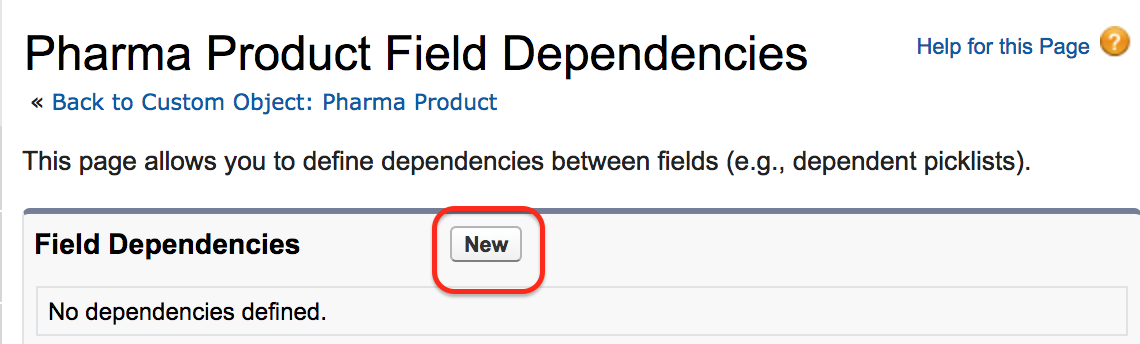
As there are no field dependencies in the object, click on the New button to create a new dependency.
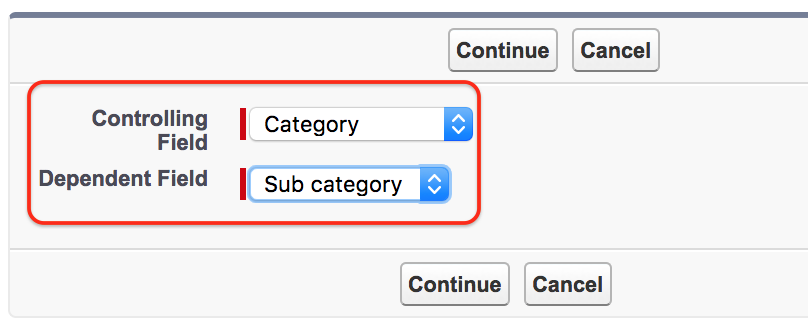
Now select the controlling field and dependent field. Here, the controlling field is Category and the dependent field is Sub Category.
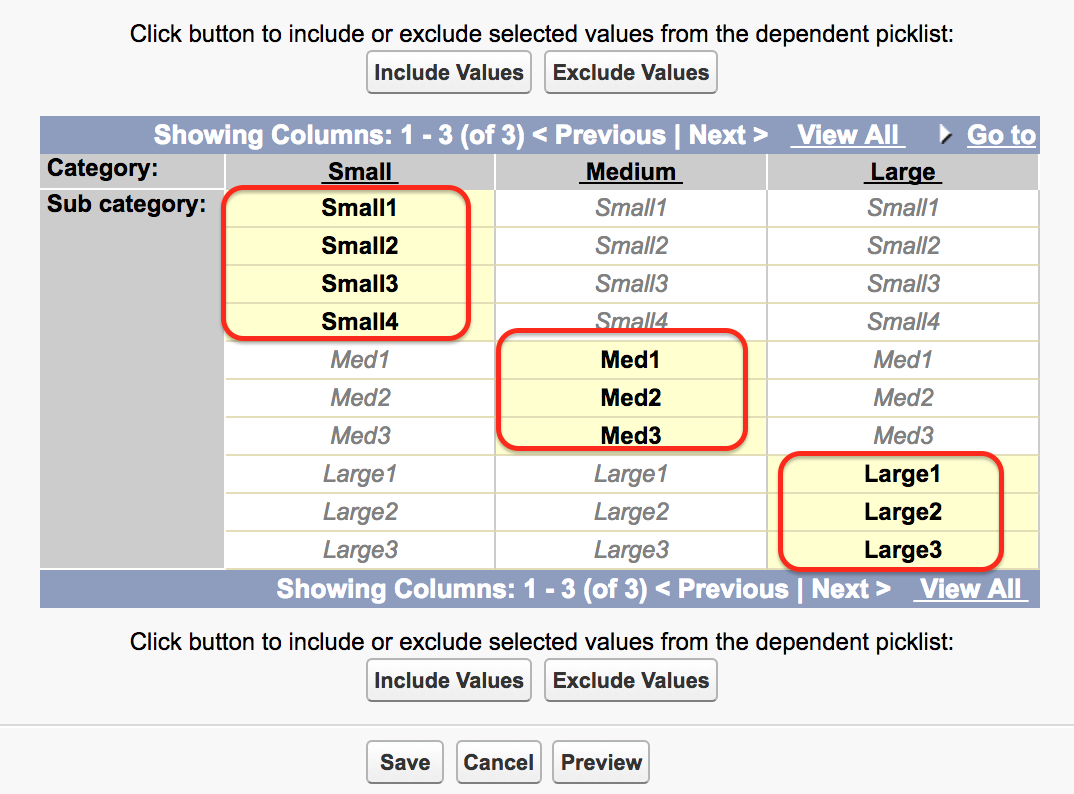
After selecting the fields, Salesforce opens a field dependency matrix. The controlling field values are shown as columns, and the dependent field values are shown as rows. Select the dependent values that should be available for each controlling value. In this example, the Category values are Small, Medium, and Large. Finally, click on the Save button.
How the Salesforce Field Dependency Matrix Works
The field dependency matrix is the main setup screen for dependent picklists. Each column represents a controlling field value. Each row represents a dependent field value. A selected cell means that the dependent value is available when that controlling value is selected.
| Controlling Field Value | Dependent Picklist Values Shown to User |
|---|---|
| Small | Small1, Small2, Small3 |
| Medium | Medium1, Medium2, Medium3 |
| Large | Large1, Large2, Large3 |
This mapping is only an example. In a real Salesforce org, choose values that match your business process. For example, Product Category can control Product Model, Case Type can control Case Sub Type, and Country can control State or Province.
How Field Dependencies in Salesforce Work on a Record Page
To check the working of Field Dependencies in Salesforce, go to the Pharma Product object and click on New. When creating a record, the Category and Sub Category fields are displayed.
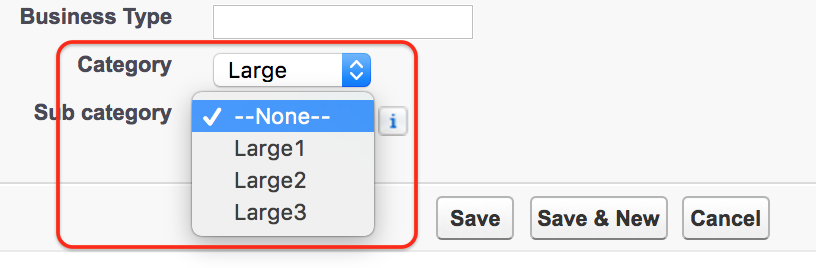
When we select Large as the controlling field value, the dependent field shows only the related Sub Category values such as Large1, Large2, and Large3. If the user changes Category to another value, the available Sub Category values also change.
Salesforce Field Dependency Setup Checklist
- Confirm that the controlling field values are final before building the dependency matrix.
- Create all dependent picklist values before mapping them to controlling values.
- Add both controlling and dependent fields to the page layout used by record creators and editors.
- Test every controlling field value to confirm that the correct dependent values appear.
- Check profiles, permission sets, record types, and page layouts if a user cannot see the expected field or value.
- Use validation rules when users must not save certain field combinations, even through imports or automation.
Common Problems with Dependent Picklists in Salesforce
If a dependent picklist does not show the expected values, check the dependency matrix first. The required cell may not be selected. Also check whether the picklist value is inactive, whether the field is included on the page layout, and whether the user has access to the object and field.
If record types are used, make sure the picklist values are available for the selected record type. A value can be mapped in the field dependency matrix but still not appear to a user if it is not available for that record type.
When to Use Field Dependencies Instead of Validation Rules
Use Field Dependencies in Salesforce when you want to guide users by showing only relevant picklist choices. Use validation rules when you need to prevent users from saving invalid combinations. In many Salesforce implementations, both are used together: field dependencies improve the user experience, and validation rules protect data quality.
FAQ on Field Dependencies in Salesforce
What is a field dependency in Salesforce?
A field dependency in Salesforce is a setup feature that filters the values of a dependent picklist based on the value selected in a controlling field.
Can a standard picklist be a dependent field in Salesforce?
No. A standard picklist can be used as a controlling field, but a dependent field is normally a custom picklist or custom multi-select picklist.
Can a checkbox be used as a controlling field in Salesforce?
Yes. A checkbox can be used as a controlling field. The dependency matrix shows separate options for checked and unchecked values.
Why is my dependent picklist value not showing in Salesforce?
The value may not be selected in the dependency matrix, may be inactive, may not be available for the record type, or the user may not have access to the field or object.
Can a dependent picklist have a default value in Salesforce?
No. Salesforce does not support default values for dependent picklists. You can set default values for controlling fields where applicable.