 TutorialKart.com
Salesforce Lightning App can mean two related things depending on the context. In this tutorial, we create an Aura-based Lightning application, where the application markup is stored in a .app resource and the UI is built by including Lightning components. In Salesforce Setup, a Lightning app can also mean a user-facing app created from App Manager with navigation items, branding, and utility items.
In this Salesforce Tutorial, we will learn how to create Salesforce lightning Components and will create our own simple Salesforce lightning application using components.
The example below uses the Developer Console and Aura component files such as .cmp and .app. This is useful for understanding the original Lightning component model. For new Salesforce user interface development, Lightning Web Components are commonly used, while Aura examples are still helpful when maintaining older components or learning how Aura applications are structured.
Before You Create a Salesforce Lightning App in Developer Console
Before starting, make sure that you can log in to a Salesforce org where Developer Console is available. A Developer Edition org is suitable for practice. You should also know the difference between the files used in this tutorial:
- Lightning component: An Aura component with a
.cmpfile extension. - Lightning application: An Aura application with a
.appfile extension. - Component reference: A tag such as
<c:hello />that places a component inside the application. - c namespace: The default namespace used for custom components in an org without a custom namespace.
How to create Salesforce lightning Components?
To Create Salesforce lightning Components, login to Salesforce developer account and navigate to developer console.
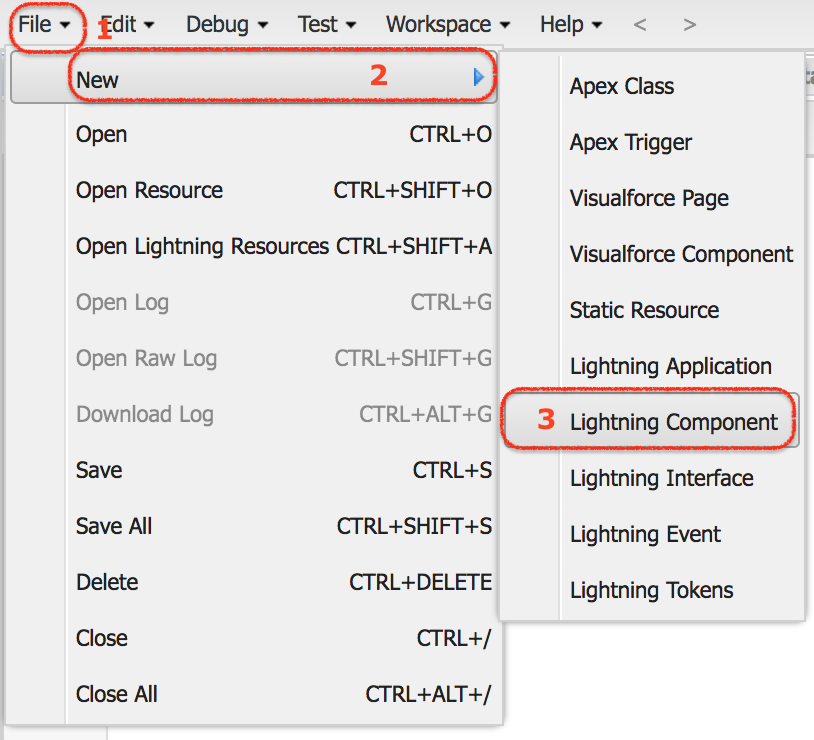
- Now go to File | New | Lightning Component.
- Enter name and description for the lightning component.
- Here we have named lightning component as hello and second component as hello1.
- Lightning component has .cmp extension as shown below.
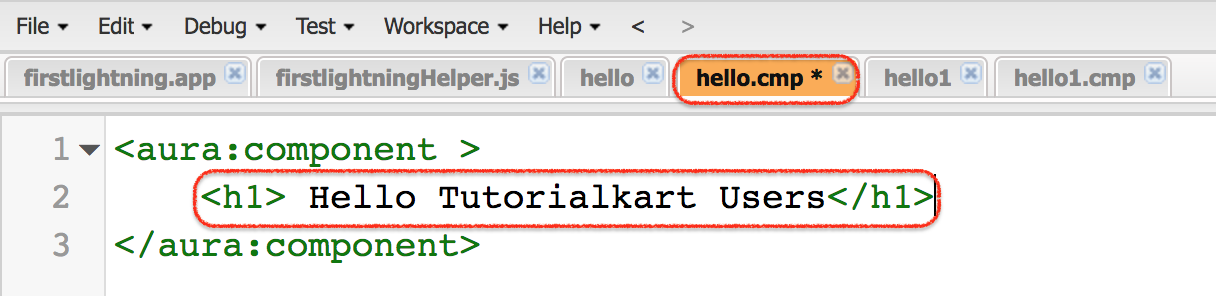
- As shown above, lightning component has opening and closing tags. Simply we have added H1 tag with message.
A simple Aura component named hello.cmp can be written as follows:
<aura:component>
    <h1>Hello from first Lightning component</h1>
</aura:component>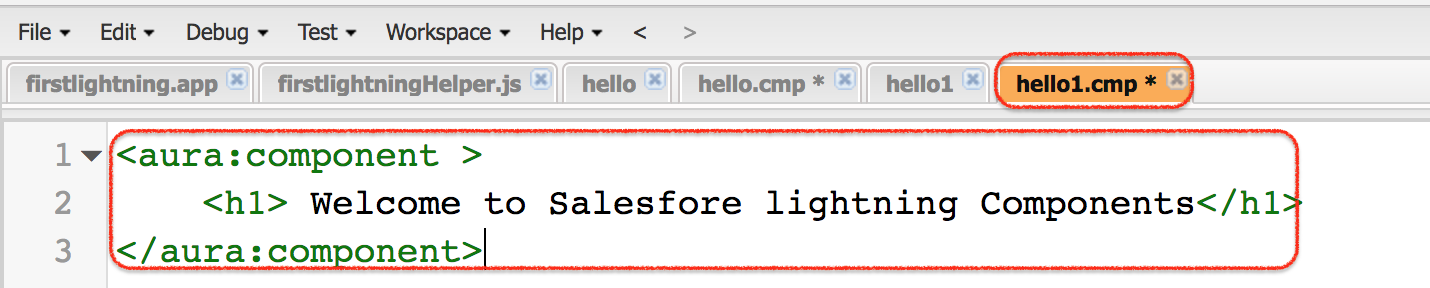
- This is the second lightning component that created with name hello1. The component is named as hello1.cmp.
The second component can contain a different message so that you can clearly see both components when the Lightning application runs.
<aura:component>
    <h1>Hello from second Lightning component</h1>
</aura:component>
Creating our first Salesforce Lightning App
In this example, we are going to create Salesforce lightning app from developer console and we named that application as “firstlightning“.
- Navigate to Developer console | File | New | Lightning Application.
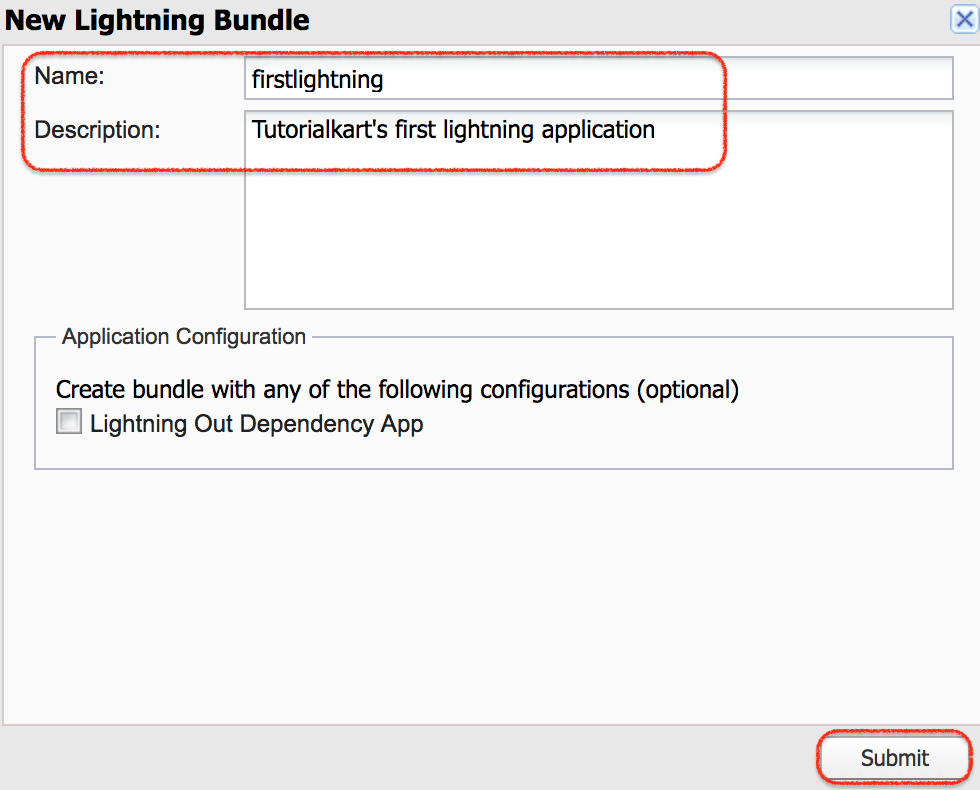
- Click on Submit button.
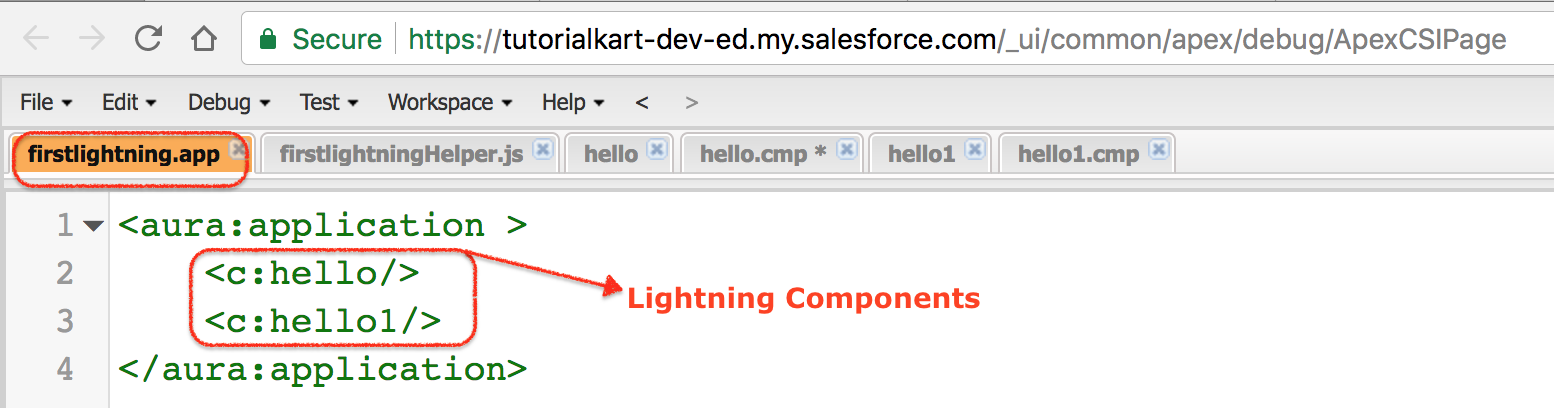
- As shown above, we have created our first Salesforce lightning app using two lightning components.
- <c : is a standard name space. We can create our own namespace.
- We have to use component file name in the application.
- <c:hello/> displays the components hello and <c:hello1> displays hello1 component in Salesforce lightning app.
- Now click on Save button.
The application file can include the two components as shown below. The <c:hello /> and <c:hello1 /> tags refer to the component file names.
<aura:application>
    <c:hello />
    <c:hello1 />
</aura:application>
If the org has a custom namespace, the namespace before the colon can be different. In many practice orgs and Developer Edition orgs, c is used for custom components.
How to preview Salesforce lightning app?
To preview Salesforce lightning app output click on the preview as shown below.
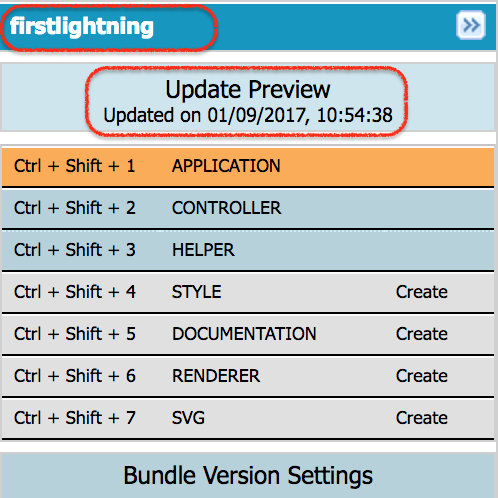
- Click on Preview, now a new tab will be opened that displays Salesforce lightning application output.

As shown above, we observe that Salesforce lightning application name is in the URl and the output.
Creating a User-Facing Lightning App from Salesforce Setup
The Developer Console example above creates an Aura application file. If your goal is to create a user-facing Salesforce Lightning app with tabs, navigation, branding, and app options, use App Manager in Setup instead. This is the path administrators commonly use when they want a new app to appear in the App Launcher.
- Open Setup in Salesforce Lightning Experience.
- Search for App Manager in the Quick Find box.
- Click New Lightning App.
- Enter the app name, developer name, description, and branding details.
- Select the navigation style and utility items if required.
- Add navigation items such as Home, Accounts, Contacts, Opportunities, Reports, or custom objects.
- Assign the app to the required user profiles.
- Save the app and open it from the App Launcher.
Use this Setup-based method when the requirement is to build an app for end users. Use the Developer Console method when the requirement is to understand Aura component structure and how an Aura .app file can include components.
Using Lightning App Builder for Salesforce Lightning Pages
Lightning App Builder is used to create and edit Lightning pages, such as app pages, record pages, and Home pages. It is different from creating an Aura .app file in Developer Console. In Lightning App Builder, you arrange standard, custom, and managed components on a page using a visual layout editor.
A common workflow is to create a Lightning app in App Manager, then create or customize pages in Lightning App Builder, and finally add those pages or object tabs to the app navigation. Salesforce Trailhead and Salesforce Help both provide guided references for this Setup-based approach.
Common Errors While Creating a Salesforce Lightning App
- Component name mismatch: If the component file is named
hello.cmp, reference it as<c:hello />. Do not use a different name in the application file. - Missing closing tag: Aura markup requires correct opening and closing tags. Check the
<aura:component>and<aura:application>tags before saving. - Wrong namespace: In most practice orgs, custom components use the
cnamespace. In a namespaced org, the component reference can be different. - Confusing App Manager with Developer Console: App Manager creates user-facing Lightning apps. Developer Console creates Aura component and application resources.
- Preview not opening: Check browser pop-up settings and verify that the application file is saved without markup errors.
FAQs on Creating a Salesforce Lightning App
How do I create a new Lightning app in Salesforce?
For a user-facing app, go to Setup | App Manager | New Lightning App and follow the app creation steps. For an Aura application file, open Developer Console | File | New | Lightning Application.
What is the difference between a Lightning app and a Lightning component?
A Lightning component is a reusable UI unit. In an Aura example, it is stored as a .cmp file. A Lightning application can contain one or more components and, in Developer Console, is stored as a .app file.
How do I set the default app in Salesforce Lightning?
Default app behavior is usually controlled through profile and app visibility settings. In App Manager, make sure the required app is assigned to the relevant profiles and that users have access to the objects and tabs included in the app.
Can I use Lightning App Builder instead of Developer Console?
Yes, if your requirement is to build or customize Lightning pages for users. Developer Console is used in this tutorial to demonstrate Aura component and Aura application files, while Lightning App Builder is used for visual page layout work.
Should new Salesforce apps use Aura components or Lightning Web Components?
For many new custom UI requirements, Lightning Web Components are the preferred development model. Aura components remain useful when maintaining existing Aura code or learning older Lightning examples such as this .app based tutorial.
Editorial QA Checklist for Salesforce Lightning App Tutorial
- Confirm that the tutorial clearly separates Aura
.appfiles from Setup-based Lightning apps in App Manager. - Verify that each component reference uses the same name as the corresponding
.cmpfile. - Check that all added code blocks use valid Aura XML-style markup and the correct PrismJS class.
- Ensure screenshots remain in the same topic flow and keep their existing image URLs unchanged.
- Review whether the page explains when to use Developer Console, App Manager, and Lightning App Builder.
Conclusion
In this Salesforce tutorial, we have learned about how to create Salesforce lightning components and lightning application. We created two Aura components, added them to a Lightning application file, and previewed the output from Developer Console. We also noted how this differs from creating a user-facing Lightning app in Salesforce Setup using App Manager or designing pages with Lightning App Builder. In our next Salesforce tutorial, we will learn how to add styling to lightning application using external static resources.