 TutorialKart.com
How to Assign Company Code to Chart of Accounts in SAP FICO
In this SAP FICO tutorial, you will learn how to assign a company code to a chart of accounts in SAP using transaction code OB62. In our previous SAP training, we learned what is chart of accounts and how to create COA in SAP. After you define the chart of accounts, you must assign it to the required company code before G/L account master data can be used correctly for that company code.
The link between company code and chart of accounts is established through the assignment of company code to chart of accounts in SAP. This assignment tells SAP which operating chart of accounts will be used for posting and reporting transactions in a particular company code.
Company Code to Chart of Accounts Assignment Example in SAP
For this configuration example, we assign company code TK01 to chart of accounts TKCA.
| Cocd | Company Name | City | Chrt/Accts |
| TK01 | TK Software Limited | Bangalore | TKCA |
Prerequisites Before Assigning Chart of Accounts to Company Code
Before you maintain the assignment in OB62, make sure that the basic enterprise structure and accounting configuration are already available in the SAP system.
- The company code has already been created.
- The chart of accounts key has already been defined in SAP.
- You know which operating chart of accounts must be used for the company code.
- You have authorization to change Financial Accounting customizing settings.
- The assignment is reviewed carefully, because changing the chart of accounts after postings exist can affect accounting master data and configuration dependencies.
OB62 Transaction Code and IMG Path for Company Code Chart of Accounts Assignment
You can assign company code to chart of accounts in SAP by using one of the following methods.
-
-
Menu Path: – SPRO –> IMG –> Financial Accounting –> G/L Accounting –> GL Accounts –> Master Data –> Preparations –> Assign company code to chart of accounts.
Step 1: Open OB62 to Assign Company Code to Chart of Accounts
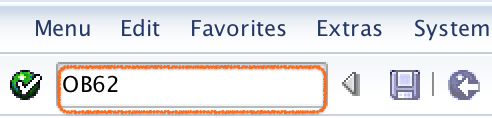
Enter T-Code OB62 in the SAP command field and press Enter.
Step 2: Find the Company Code in Assign Company Code to Chart of Accounts Overview
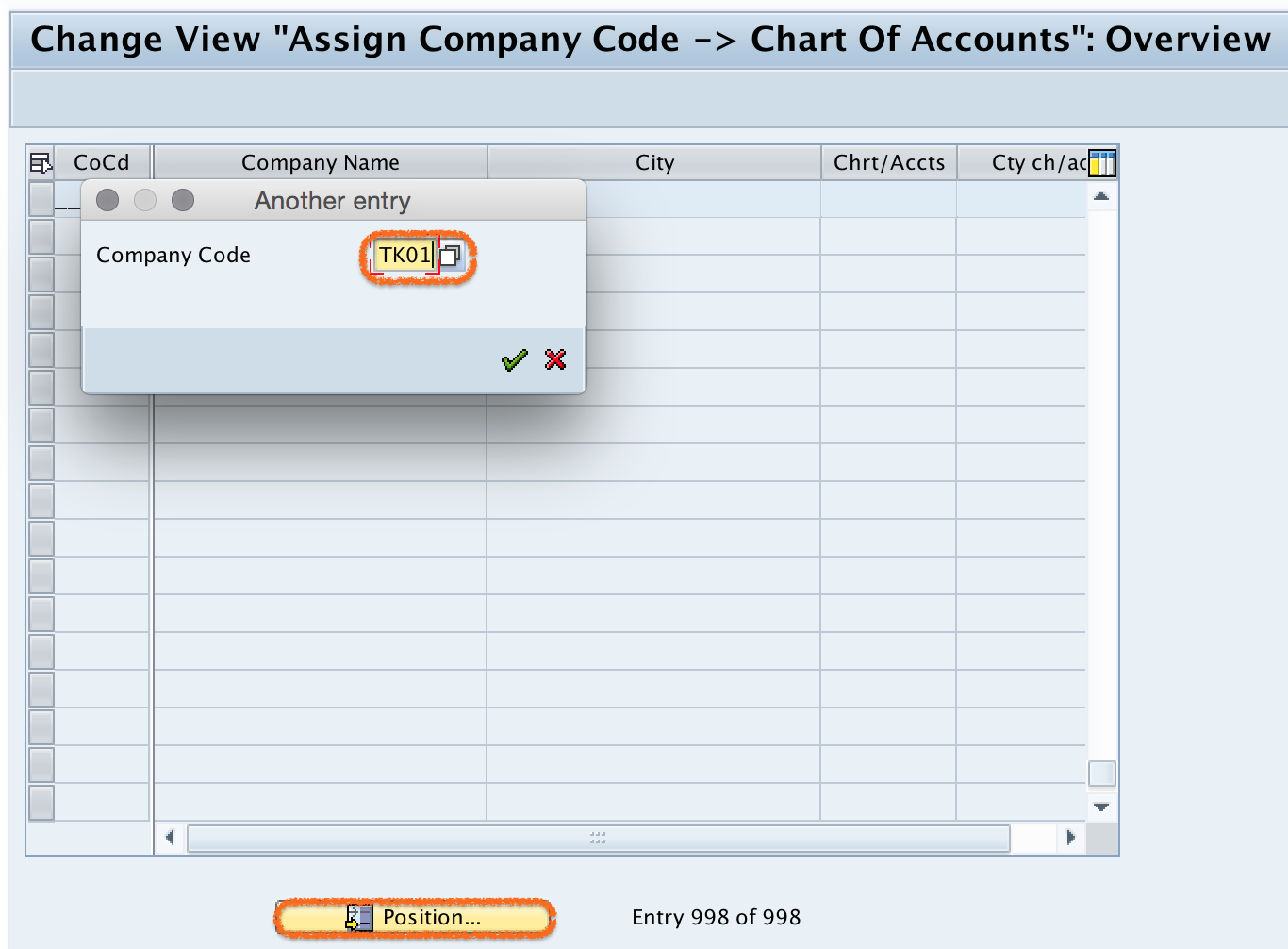
On the change view Assign company code –> chart of accounts overview screen, choose the Position option. Enter the company code in the given field so that the required company code is displayed at the top of the overview list.
Step 3: Enter Chart of Accounts Key for the Company Code
Assign company code TK01 to chart of accounts TKCA by entering the chart of accounts key in the Chrt/Accts field. In real projects, use the chart of accounts key approved for the legal entity, country requirements, and reporting design.

Step 4: Save the Company Code and Chart of Accounts Assignment
Click the Save button to save the configured assignment details. If the system prompts for a customizing request, select or create the appropriate transport request as per your project practice.

Successfully, we have assigned company code to chart of accounts in SAP.
How to Check Chart of Accounts Assigned to a Company Code in SAP
To check the chart of accounts assigned to a company code, open transaction code OB62 and use the Position option to search for the company code. The value in the Chrt/Accts column shows the chart of accounts assigned to that company code.
You can also review the company code configuration in Financial Accounting customizing when checking related settings such as fiscal year variant, posting period variant, and field status variant. However, the operating chart of accounts assignment itself is maintained in OB62.
Difference Between OB13, OB62, OB37, and OB58 in SAP FICO
The following SAP transaction codes are often searched together because they are related to Financial Accounting setup, but each one has a different purpose.
| Transaction Code | Purpose in SAP FICO |
| OB13 | Define or maintain chart of accounts. |
| OB62 | Assign company code to chart of accounts. |
| OB37 | Assign company code to fiscal year variant. |
| OB58 | Define or maintain financial statement versions. |
For this tutorial, the required configuration activity is OB62, because we are assigning an already defined chart of accounts to a company code.
Common Issues While Assigning Company Code to Chart of Accounts in SAP
- Wrong chart of accounts key entered: Verify the chart of accounts in OB13 before assigning it to the company code.
- Company code not found in OB62: Check whether the company code has been created correctly before maintaining accounting assignments.
- No authorization to save: Ask the SAP security or basis team to review the required customizing authorization.
- Transport request required: In development and quality systems, SAP may ask for a customizing request before saving the assignment.
- Existing postings already available: Do not change the assigned chart of accounts casually after business postings exist. Review the impact with the SAP FI consultant or project lead.
FAQ on Assigning Company Code to Chart of Accounts in SAP
What is OB62 in SAP?
OB62 is the SAP transaction code used to assign a company code to a chart of accounts. It connects the company code with the operating chart of accounts used for G/L account postings.
Is it mandatory to assign chart of accounts to company code in SAP?
Yes. A company code must be assigned to a chart of accounts so that G/L accounts can be used properly for accounting transactions in that company code.
What is OB13 in SAP chart of accounts configuration?
OB13 is used to define or maintain a chart of accounts in SAP. After the chart of accounts is defined in OB13, it can be assigned to a company code using OB62.
How do I check which chart of accounts is assigned to a company code?
Open OB62, choose Position, enter the company code, and check the value shown in the Chrt/Accts column. That value is the chart of accounts assigned to the company code.
Can one chart of accounts be assigned to multiple company codes?
Yes. One operating chart of accounts can be assigned to multiple company codes when those company codes need to use a common G/L account structure.
Editorial QA Checklist for SAP OB62 Company Code Chart of Accounts Tutorial
- Confirm that OB62 is described only as the assignment transaction, not as the transaction for defining a chart of accounts.
- Verify that OB13, OB37, and OB58 are explained separately to avoid transaction code confusion.
- Check that the example company code TK01 and chart of accounts TKCA are used consistently.
- Make sure the tutorial warns readers not to change the chart of accounts assignment casually after postings exist.
- Ensure the IMG path and screenshots match the company code to chart of accounts assignment process.