 TutorialKart.com
In SAP FI-AA, you normally create a new chart of depreciation by copying a reference chart of depreciation and then adjusting the copied depreciation areas for your company code. This tutorial explains what the chart of depreciation means, how depreciation areas are copied, and how to use transaction code EC08 or the SPRO IMG path to copy a reference chart of depreciation in SAP.
Chart of depreciation in SAP Asset Accounting
In SAP, a chart of depreciation is a country-specific grouping of depreciation areas and valuation rules used in Asset Accounting. Each company code is assigned to one chart of depreciation, and the assignment must be consistent with the chart of accounts and the accounting requirements used by that company code.
A chart of depreciation is not usually created from a blank screen. SAP provides reference charts of depreciation for different countries and valuation needs. During implementation, you copy the nearest reference chart, give it your own key, maintain its description, and then keep or remove depreciation areas based on your business requirement.
Depreciation areas copied with the reference chart of depreciation
A depreciation area is a two-character alphanumeric key that represents a specific valuation view for an asset. Depreciation areas are used in asset master records and asset classes to calculate and post depreciation for book valuation, tax valuation, group valuation, cost-accounting valuation, or other reporting needs.
| SAP FI-AA object | Purpose in depreciation configuration |
|---|---|
| Chart of depreciation | Groups depreciation areas for one country or accounting requirement. |
| Depreciation area | Controls a particular asset valuation, such as book depreciation or tax depreciation. |
| Target ledger group | Determines the ledger group used for depreciation posting, for example 0L for the leading ledger when that is the required target group. |
| Company code assignment | Links the company code to the chart of depreciation after the chart is available. |
Before you copy a reference chart of depreciation in SAP
Before running the copy activity, confirm the source reference chart, the new chart key, and the depreciation areas you plan to use. In a training system, this tutorial copies the German reference chart 0DE to a new chart of depreciation named TKCD. In a real project, the copied chart key and the depreciation areas should follow the configuration design approved for the company code.
- Choose the correct SAP reference chart of depreciation for the country or valuation requirement.
- Decide the new chart of depreciation key and description before starting the copy.
- Check which copied depreciation areas are required and which ones should be deleted.
- Confirm whether number ranges should be transported according to your project transport policy.
- Keep a customizing request ready, because the copy and subsequent changes are configuration changes.
SAP EC08 and SPRO path for copying reference chart of depreciation
Transaction code: – EC08
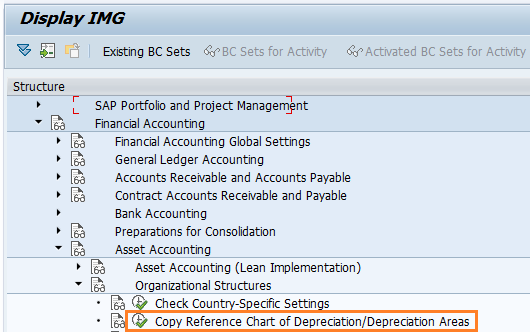
IMG Path: – SPRO >> SAP Reference IMG >> Financial Accounting >> Asset Accounting >> Organization Structures >> Copy reference chart of depreciation / depreciation areas.
You can either use transaction code EC08 directly or open the activity from the SAP Reference IMG. The following steps use the IMG navigation so that you can see where the copy activity is placed in the Asset Accounting configuration menu.
How to copy reference chart of depreciation in SAP
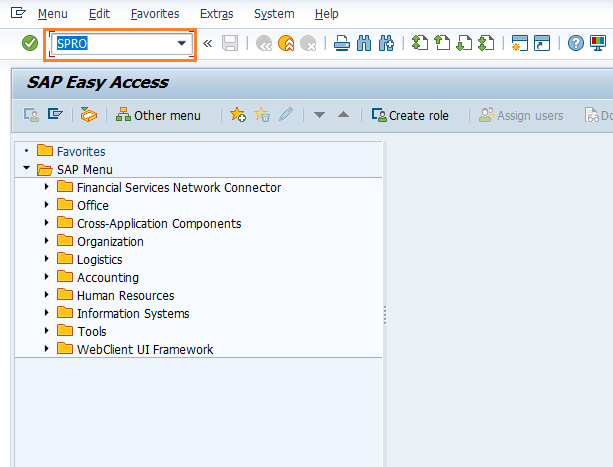
Step 1) Enter transaction code “SPRO” in the SAP command field and press Enter.
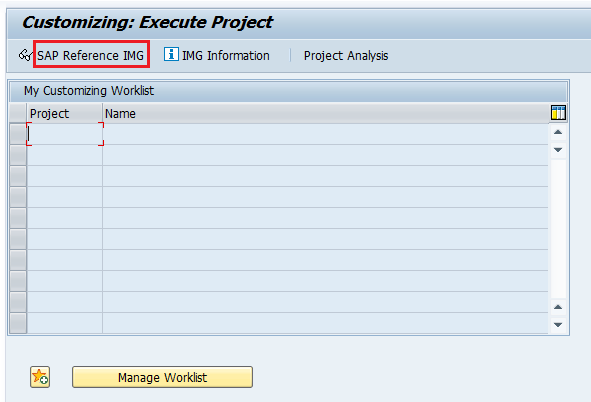
Choose “SAP Reference IMG” to open the configuration activities.
Follow the IMG menu path and click the IMG activity “Copy reference chart of depreciation/depreciation areas”.
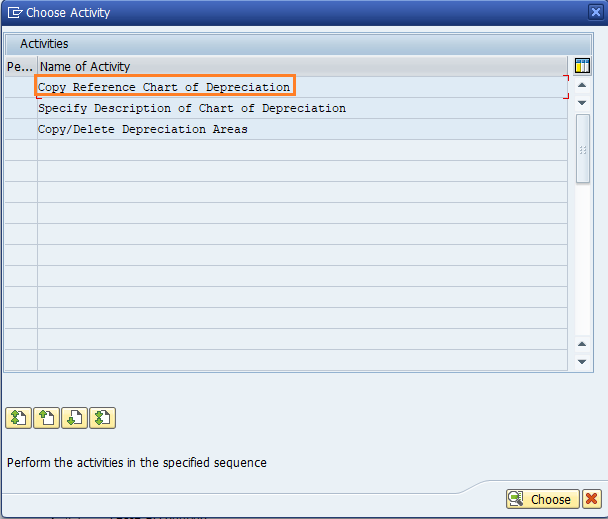
On the choose activity screen, click “Copy Reference Chart of Depreciation”.
Step 2) From the organizational object chart of depreciation screen, click the copy as icon, also called copy organization object, or press function key F6.
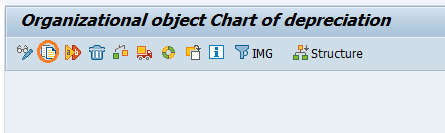
Step 3) On the copy as screen, enter the source chart of depreciation and the new chart of depreciation.
- From chart of dep: – Update the depreciation chart key that you would like to copy. Here we are copying values from 0DE, maximum valuation Germany, to our new chart of depreciation.
- To chart of dep: – Enter chart of depreciation key as “TKCD”.
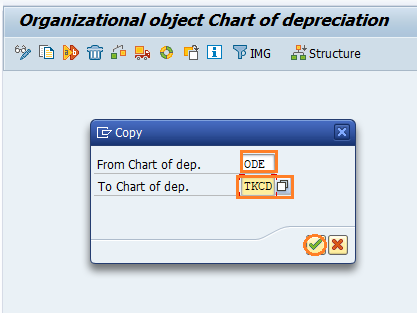
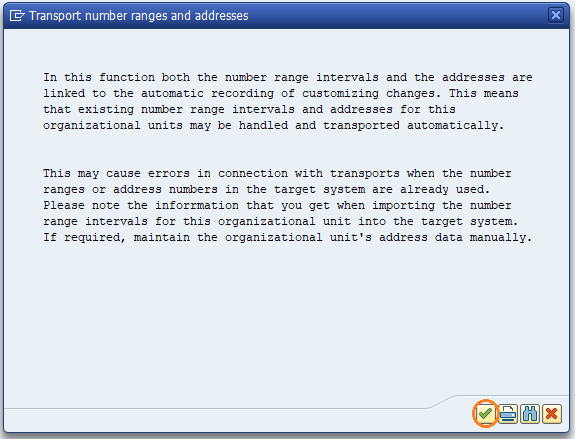
After entering the details, press Enter to continue. SAP displays a message for transport of number ranges and address data. Press Enter again to continue.
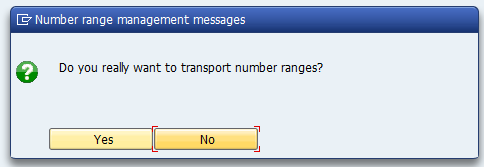
Step 4) When SAP displays the warning message “Do you really want to transport number ranges”, click the “Yes” button if transporting number ranges is allowed for your project.
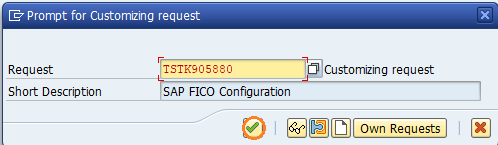
Step 5) SAP prompts you for a customizing request. Choose the relevant request and press Enter to continue.
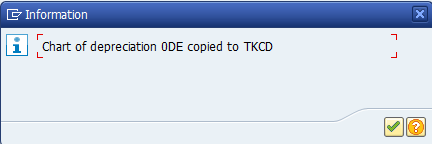
On the next screen, an information box displays the message “Chart of dep 0DE copied to TKCD”. Press Enter to continue. This confirms that SAP has created the new chart of depreciation by copying the reference chart.
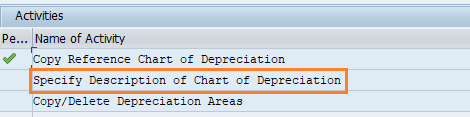
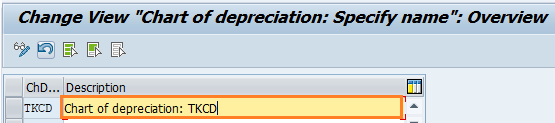
Step 6) Press the back button or F3 key and click “Specify Description of Chart of Depreciation”. This step is used to maintain a meaningful text for the copied chart.
Select the position button, enter your chart of depreciation key in the field, and press Enter to continue.
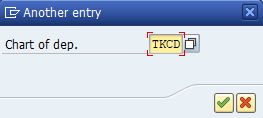
Update the descriptive text for chart of depreciation TKCD and click the save button to save the configured details.
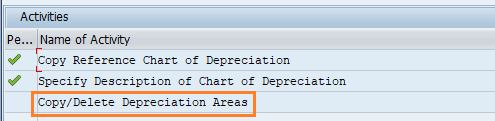
Step 7) Press the back button or F3 key and click “Copy/Delete Depreciation Areas”. This activity is used to review the depreciation areas copied from the reference chart and remove the areas that are not required.
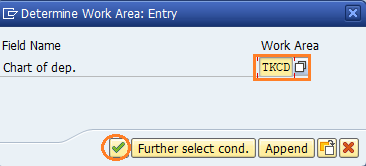
Select the chart of depreciation “TKCD” as the work area and press Enter.
Select unwanted areas and click the delete button to delete the depreciation areas. Do not delete a depreciation area unless you have confirmed that it is not used for statutory reporting, group reporting, tax reporting, or depreciation posting.
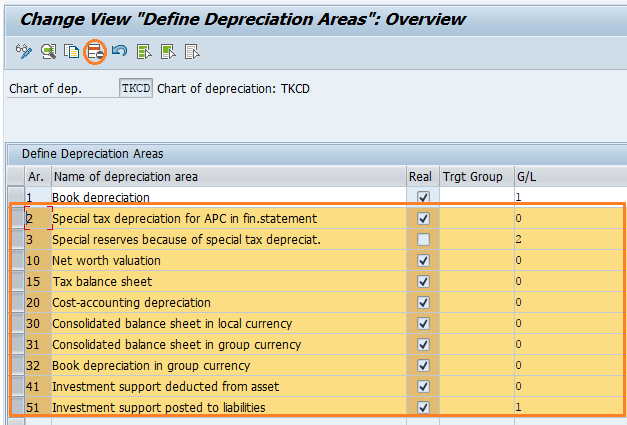
Update the target group as 0L, Leading Ledger, where it is the required ledger group for the depreciation area. Click the save button to save the configured details.
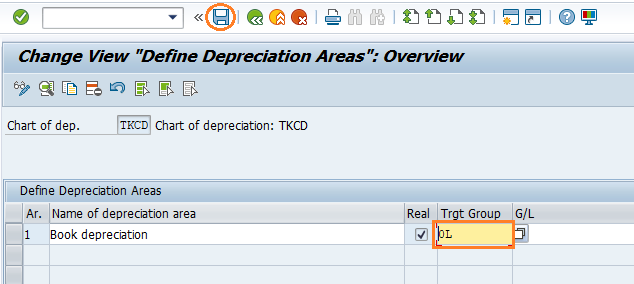
Successfully, we have copied the reference chart of depreciation and maintained the depreciation areas for the new SAP chart of depreciation.
Checks after copying depreciation areas in SAP FI-AA
After the copy activity, review the copied chart before assigning it to a company code or using it in asset master data. The copy creates a working configuration, but it does not replace the need to validate depreciation rules, posting behavior, and ledger assignments.
- Verify the description of the new chart of depreciation so that users can identify it clearly.
- Check every retained depreciation area for posting indicator, depreciation terms, and ledger group assignment.
- Confirm that unwanted depreciation areas were deleted only after business approval.
- Review number range transport behavior according to your landscape and transport strategy.
- Assign the chart of depreciation to the required company code only after the configuration is reviewed.
Common mistakes while copying reference chart of depreciation in SAP
- Copying the wrong reference chart: Always choose the source chart that best matches the country and accounting requirement.
- Keeping all copied depreciation areas: A reference chart may contain areas that are not needed in your implementation.
- Deleting depreciation areas too early: Deleting an area without checking reporting and ledger requirements can cause configuration gaps later.
- Ignoring the target ledger group: In ledger-based accounting, the depreciation area should be aligned with the correct ledger group.
- Using unclear chart descriptions: A short but meaningful description helps consultants and users identify the correct chart during later configuration.
Official SAP reference for chart of depreciation assignment
For additional SAP reference, you can review SAP Help documentation on assigning a chart of accounts and a chart of depreciation to a company code at SAP Help Portal. SAP Learning also explains the assignment of a chart of accounts and chart of depreciation to a company code in the Asset Accounting configuration learning path.
FAQs on copy reference chart of depreciation in SAP
What is the transaction code to copy reference chart of depreciation in SAP?
The transaction code is EC08. You can also reach the same activity through SPRO >> SAP Reference IMG >> Financial Accounting >> Asset Accounting >> Organizational Structures >> Copy reference chart of depreciation / depreciation areas.
Why do we copy a reference chart of depreciation instead of creating one manually?
Copying a reference chart saves configuration effort because SAP reference charts already contain depreciation areas and related settings. After copying, you adjust the new chart to match the company code requirements.
What is a depreciation area in SAP Asset Accounting?
A depreciation area is a two-character alphanumeric key used to represent a specific asset valuation. Examples include book valuation, tax valuation, group valuation, or other reporting valuations depending on the configuration.
Can one company code use more than one chart of depreciation?
No. A company code is assigned to one chart of depreciation. That chart can contain multiple depreciation areas to support different valuations.
Should all copied depreciation areas be kept after copying the reference chart?
No. Keep only the depreciation areas required for your accounting, ledger, tax, and reporting requirements. Unwanted areas can be deleted during the copy/delete depreciation areas activity after proper review.
Editorial QA checklist for this SAP depreciation areas tutorial
- The tutorial explains the difference between chart of depreciation and depreciation area before showing SAP screens.
- The EC08 transaction code and SPRO IMG path are both included for the copy reference chart activity.
- The example clearly states that 0DE is copied to TKCD in a training scenario.
- The steps include the customizing request, number range transport message, chart description, and copy/delete depreciation areas activity.
- The FAQ questions answer SAP FI-AA search intent without adding unrelated Asset Accounting configuration topics.