 TutorialKart.com
How to Maintain Tax Codes for Sales and Purchases in SAP FTXP
In this SAP FI tutorial, you will learn how to define tax codes for sales and purchases in SAP using transaction code FTXP. In previous SAP tutorials you have learned how to assign tax code for non taxable transactions, the next important configuration step is define tax codes for sales and purchases.
A tax code in SAP stores the tax percentage, tax type, and calculation details used during sales, purchase, and financial accounting postings. In this example, we are going to create the following tax codes for country India.
- V5 – 5% Input VAT Tax
- A5 – 5% Output VAT Tax
Purpose of Tax Codes for Sales and Purchases in SAP
Tax codes for sales and purchases are used to calculate tax automatically in SAP documents. Input tax is normally used for purchase-related postings, and output tax is normally used for sales-related postings. The tax code works together with the tax calculation procedure, condition types, and tax account determination.
For example, when you post a vendor invoice with an input tax code, SAP calculates input tax based on the maintained percentage rate. When you post a customer invoice with an output tax code, SAP calculates output tax based on the output tax percentage maintained for that code.
Prerequisites Before Defining Tax Codes in SAP FTXP
- The tax calculation procedure should already be defined for the relevant country.
- The country should be assigned to the calculation procedure.
- Required condition types should be available in the tax procedure.
- Tax accounts should be reviewed for posting through account determination, commonly maintained through OB40.
- The tax code naming convention should be agreed before creating codes such as V5 and A5.
FTXP Navigation Path to Define Tax Codes for Sales and Purchases
You can maintain tax codes by using the following navigation methods.
- Transaction code: – FTXP
- IMG path: – SPRO –>SAP IMG –> Financial Accounting (New) –> Financial Accounting Global Settings (New) –> Tax on Sales/Purchases –> Calculations –> Define Tax Codes for Sales and Purchases.
The direct transaction code FTXP is commonly used by consultants to create, display, or change tax codes. The IMG path is useful when you are checking the full tax configuration sequence in SAP Financial Accounting.
Create Input Tax Code V5 for Purchases in SAP
Step 1) Enter SAP tcode “FTXP” in command field and enter.

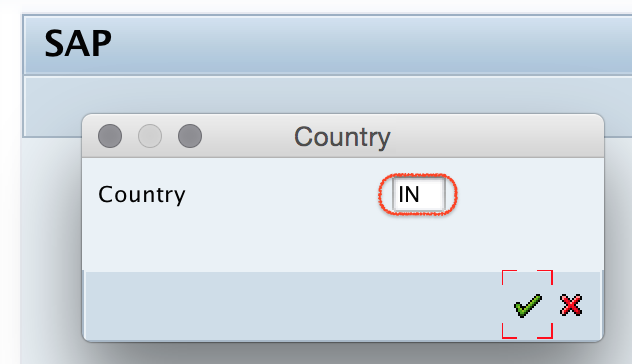
Step 2) Enter country key in the given field, as we are creating new tax codes for country India, show we have updated IN key.
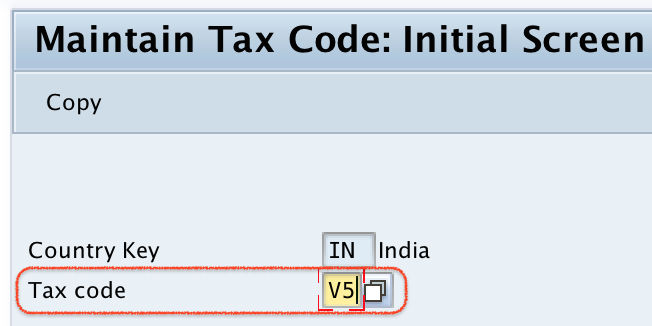
Step 3) Now you need to enter tax code key V5 which is you like to create.
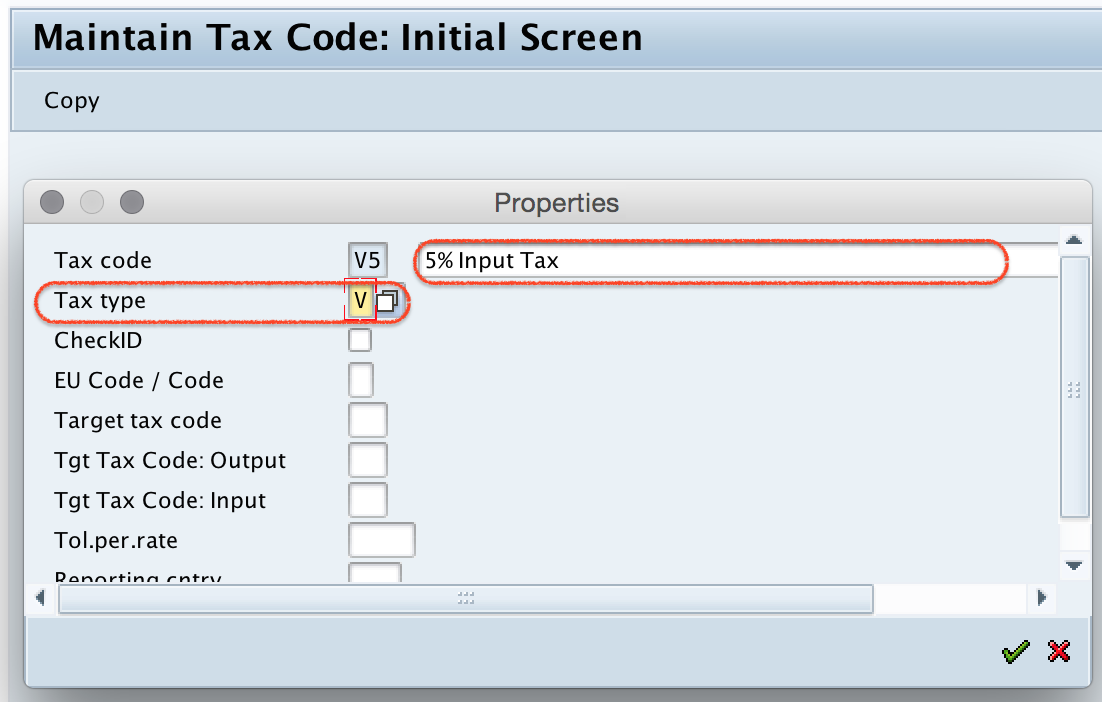
Step 4) On maintain tax code initial screen, update
- Tax code description as 5% Input Tax.
- Tax type as V (Input Tax).
- Press enter to continue to next configuration screen.
Step 5) On Maintain Tax codes: tax rates screen, update the tax percentage rate for input tax.
Note: – Here under percentage rate, only three tax types are displaying i.e. Base amount, Input tax and Output tax, other tax types are not displaying to update the tax percentage rates. This is because, we have defined tax procedure with condition types of Base amount, Input and output tax. You need to maintain condition types under tax procedure as per the organization requirements. Further you are allowed to update other tax rate like excise duty, etc in tax codes.
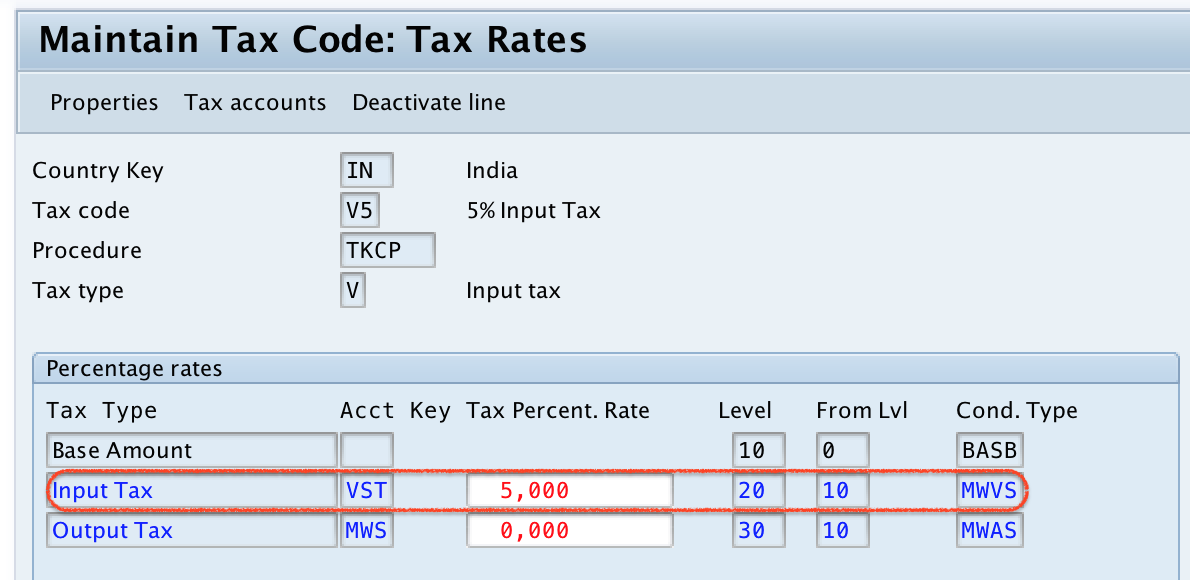
Click on save button and save the configured Tax code V5 in SAP.

Create Output Tax Code A5 for Sales in SAP
In same procedure create A5 – 5% Output VAT Tax code.
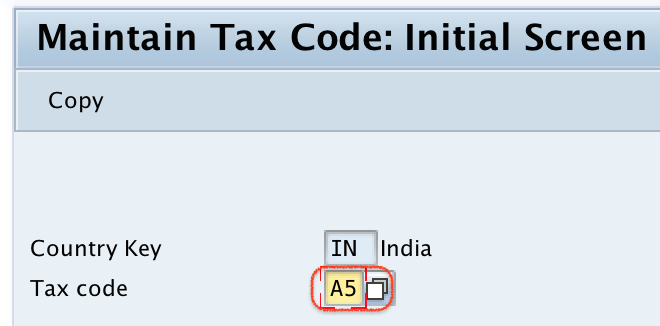
Step 1) Go back to main initial screen, enter tax code A5 in the given field as shown below image.
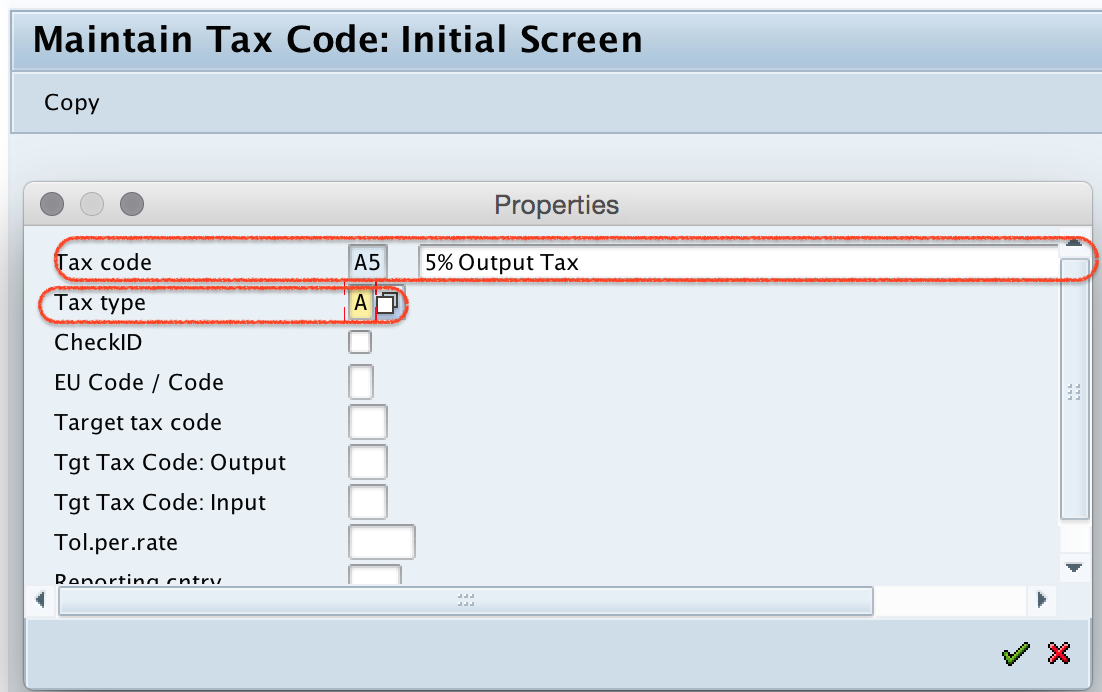
Step 2) Update tax code description as 5% Output VAT Tax and tax type as “A” (Output tax).
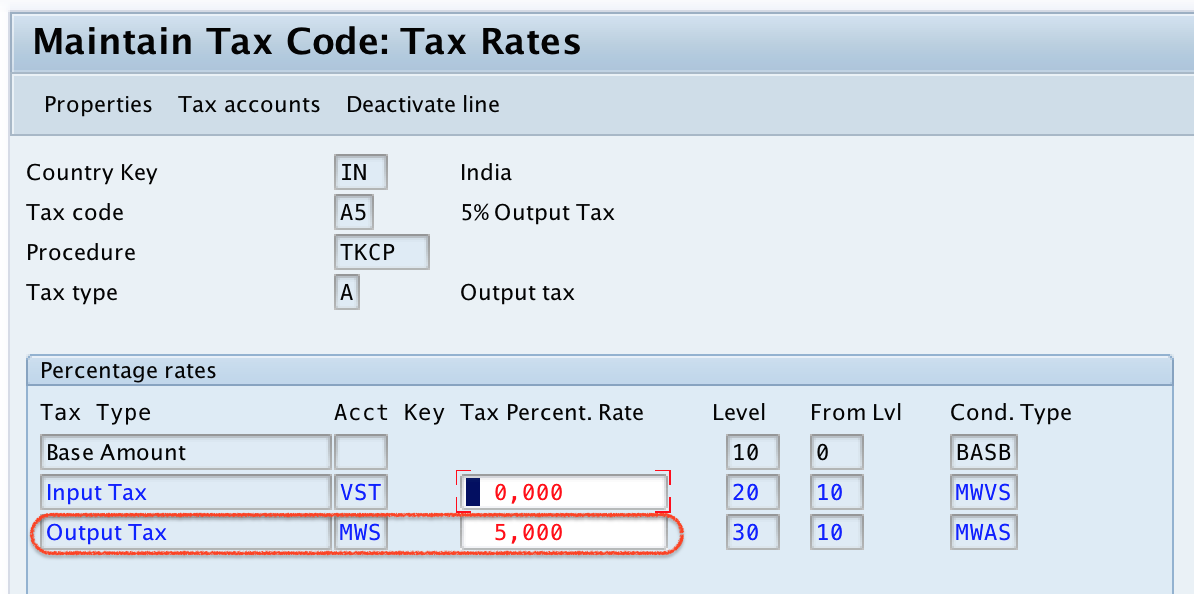
Step 3) Now enter tax percentage rate for output tax and press enter to continue.
After maintaining all the required details, click on save button and save the configured tax code.
Successfully we have created tax code for sales and purchases in SAP.
Input Tax Code V and Output Tax Code A in SAP FTXP
| Tax code example | Tax type | Used for | Typical document area |
|---|---|---|---|
| V5 | V – Input tax | Tax paid or payable on purchases | Vendor invoices and purchase transactions |
| A5 | A – Output tax | Tax collected or payable on sales | Customer invoices and sales transactions |
The tax type selected in FTXP should match the business purpose of the tax code. Do not use an input tax code for output tax postings or an output tax code for purchase-side postings unless your project design specifically requires it.
How Tax Rates Display in FTXP Based on the Tax Procedure
The percentage rate fields in FTXP depend on the condition types available in the assigned tax procedure. If only base amount, input tax, and output tax condition types are available in the procedure, only those tax rate lines are displayed for maintenance.
If your business needs additional tax components, such as separate state tax, central tax, surcharge, or other statutory components, those condition types must be part of the relevant tax procedure before they can be maintained correctly in the tax code.
Tax Code Use in FI, MM, and SD Documents
After a tax code is created in FTXP, it can be used in different SAP processes depending on configuration. In FI, users can enter the tax code directly in accounting documents. In MM, the tax code may appear in purchase orders or vendor invoices. In SD, tax is usually determined through pricing and condition technique, and the output tax code is used for tax calculation and posting.
Tax codes are not normally assigned directly to customers as a master-data field in the same way a code is created in FTXP. Sales tax determination depends on the SD tax condition setup, customer and material tax classifications, country or region details, and pricing procedure design.
OB40 Account Determination for SAP Tax Codes
Creating a tax code in FTXP is not the final step for tax postings. SAP also needs the correct general ledger account assignment for tax posting keys and account keys. This is commonly checked in OB40, where tax accounts are assigned for account determination.
If the tax code is created but accounting entries fail during invoice posting, review OB40, account keys in the tax procedure, and the relevant chart of accounts setup. This helps confirm whether the tax amount has a valid G/L account for posting.
Common Errors While Maintaining SAP Tax Codes in FTXP
- Tax rate fields are missing: Check whether the required condition types are included in the assigned tax procedure.
- Wrong tax type selected: Use V for input tax and A for output tax based on the posting requirement.
- Country key is incorrect: Create the tax code under the correct country key, such as IN for India.
- Posting fails after tax calculation: Check tax account determination in OB40 and verify G/L account assignment.
- Tax code is not available in a document: Review whether the code is created for the correct country and whether the related application configuration allows its use.
Editorial QA Checklist for SAP FTXP Tax Code Configuration
- Confirm that the tutorial clearly separates input tax code V5 and output tax code A5.
- Check that FTXP is explained as the transaction for maintaining tax codes for sales and purchases.
- Verify that the country key IN is used consistently in the example.
- Confirm that the dependency on tax procedure condition types is explained before troubleshooting missing rate fields.
- Check that OB40 account determination is mentioned for tax posting issues.
- Ensure that the article does not suggest assigning tax codes directly to customers without explaining SD tax determination logic.
FAQ on Defining Tax Codes for Sales and Purchases in SAP
How do you define a tax code in SAP?
You can define a tax code in SAP by using transaction code FTXP. Enter the country key, enter the tax code, maintain the description and tax type, enter the tax percentage rate, and save the tax code in a customizing request.
What is the difference between input tax code and output tax code in SAP?
An input tax code is used for purchase-side tax postings, such as vendor invoices. An output tax code is used for sales-side tax postings, such as customer invoices. In FTXP, tax type V is used for input tax and tax type A is used for output tax.
Why are some tax rate fields not visible in FTXP?
FTXP displays tax rate fields based on the condition types maintained in the relevant tax procedure. If a tax component is not part of the tax procedure, its percentage field will not appear in the tax code maintenance screen.
What is OB40 in SAP tax configuration?
OB40 is used for automatic account determination for tax postings. After maintaining a tax code in FTXP, you should ensure that the relevant tax accounts are assigned correctly in OB40 so that accounting documents can be posted without tax account errors.
How can you see existing tax codes in SAP?
You can use FTXP with the relevant country key to display or change existing tax codes. In reports and document entry screens, available tax codes depend on the country, tax procedure, and application-specific configuration.